Install Hik-connect on your Android phone in 7 steps
By Access Alarms Technical Team
Updated

To view a Hikvision system on an Android phone, install the Hik-Connect app from hik-connect.com, register an account set to the Australia region, then contact us to add your devices to that account.
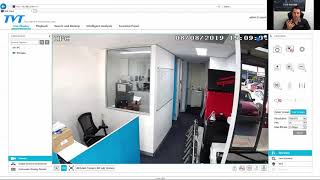
Now that you have purchased a Hikvision system from us, you can set up this up on your phone through the Hik-connect application. Watch this video, or follow the steps below to learn how to set up the app on an Android Smartphone.
Installing and setting up the Hik-Connect app
- Find the app:
- On your Android phone, go to Google and type in “Hik-connect”.
- Click on hik-connect.com.
- When it asks, “Do you want to download the Hik-connect app?”, select “okay”.
- Download and install the app:
- Select “Download”, then “Install”.
- When you receive the pop-up advising that this app can harm your device, click “Okay”.
- When your phone advises it is not allowed to install from unknown devices, go into “Settings” and select “allow from this source”.
- Opening the app:
- Now that the app is installed, open it. A few things will pop up.
- Select “Allow”, then “Agree”.
- Select “Australia” as your region.
- Register for an account:
- Do not set-up your account with a phone number, as this may cause issues.
- Select “Register”, then “Agree” and select “Australia” again.
- Enter your email address and select a password.
- Click “Send Security Code”.
- Enter the security code you received to your email into the app.
Getting your devices added and viewing your cameras
- Contact us and we will add your devices:
- (Please note we can only assist with this step if Access Alarms installed the system.) Now that you have set up your account, send us an email to say “Hi, I have now set up my Hikvision account. This is the email address.”
- Now that you have set up your app, we will add the devices to your account.
- Accessing your devices:
- Once we have added your devices to your account, simply refresh and they will appear as a new sharing.
- Select “View Now”, then accept or reject the devices.
- Now, when you select your account, you will be able to see all the cameras connected to it.
Access Alarms installs and services Hikvision CCTV across Brisbane and South East Queensland from our base in Eagle Farm.
If you have any questions regarding this process, or would like any other assistance, please call us on 1300 049 969, email us at info@accessalarms.smartlocal.dev, or contact us now.